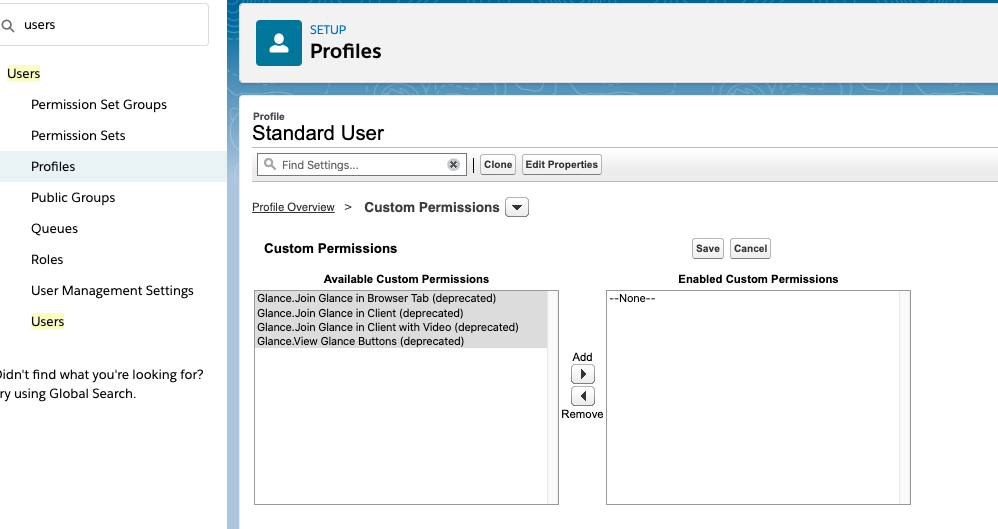
When a user without a Glance permission set accesses a Lightning Record Page with the Glance Component on it, they will see a message about Glance not being enabled. You can optionally hide this message by using a visibility filter on the Glance Component.
To set visibility filters that use the Glance permission sets:
- Navigate to the object where the Glance buttons are displayed. For example, a Contact.
- From the Gear Icon, click Edit Page.
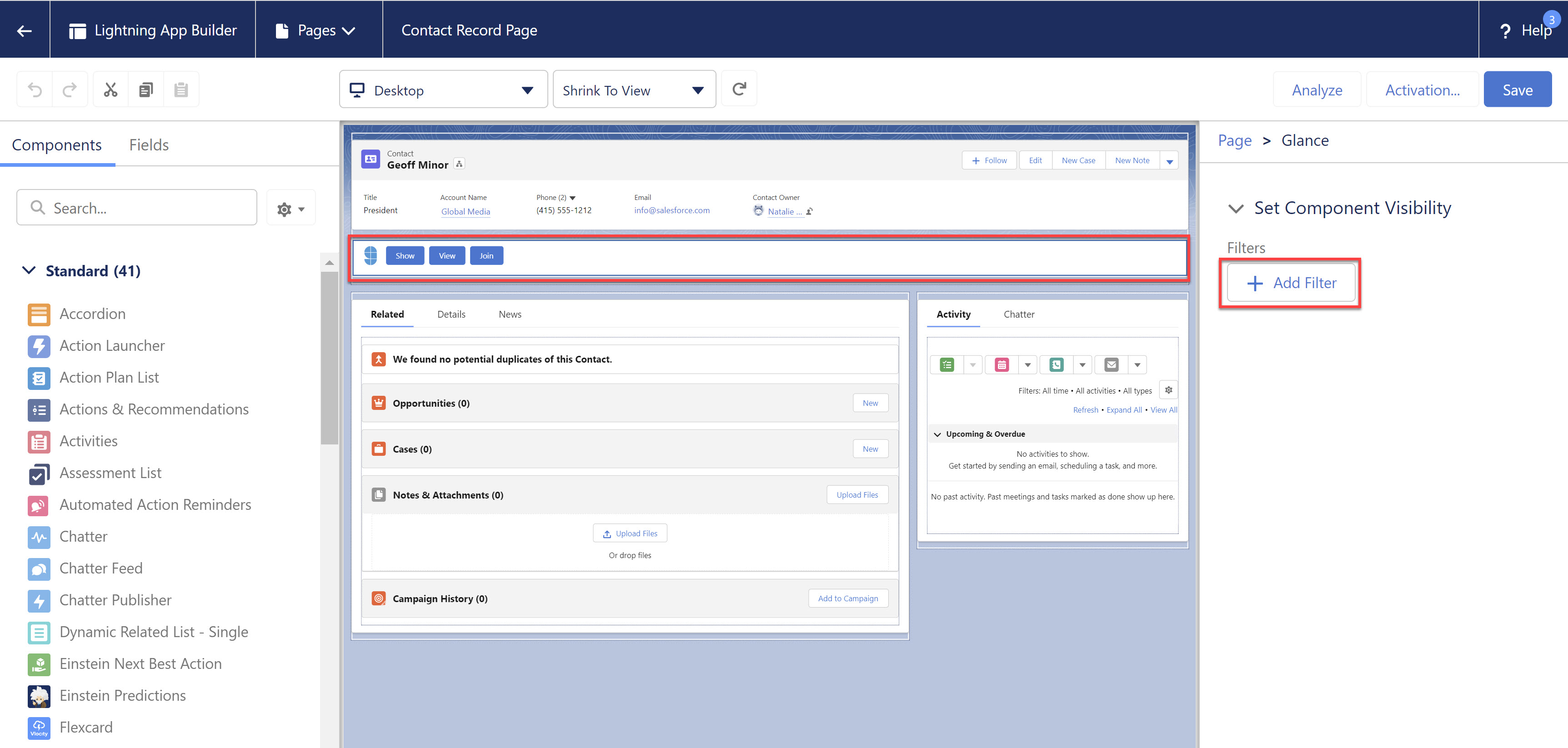
- Select the Glance component within the page. Under Set Component Visibility, click Add Filter.
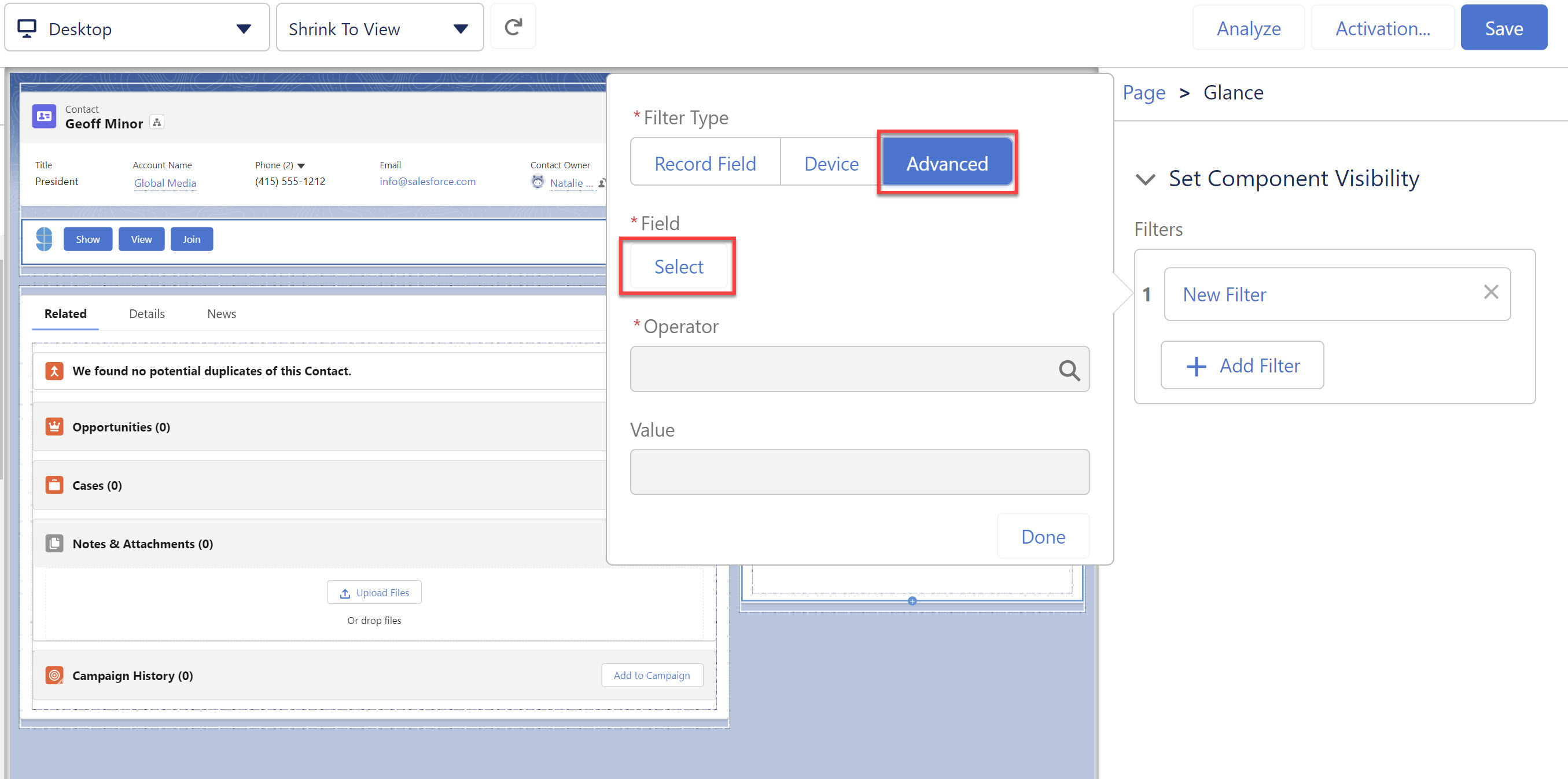
- Under Advanced, click Select.
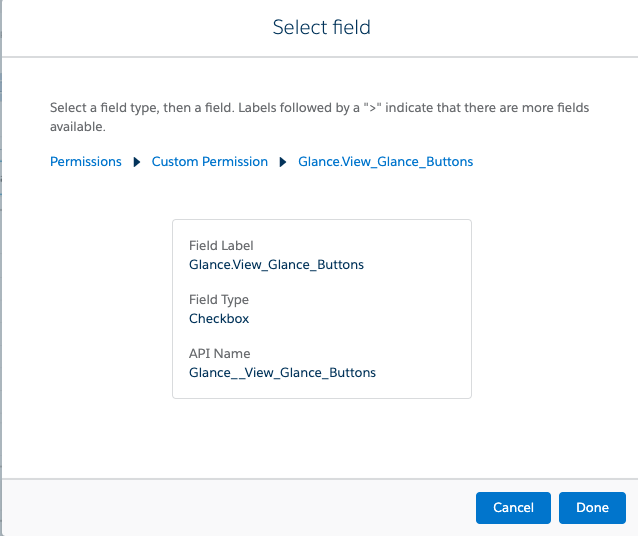
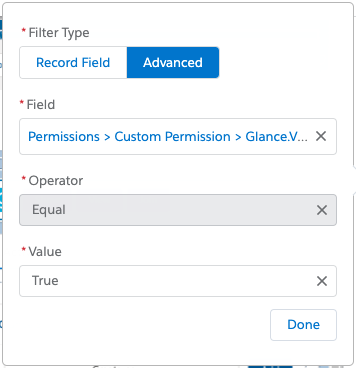
- Choose Permissions > Custom Permissions > Glance.View_Glance_Buttons and then click Done.
- Set Operator to Equal and Value to True, and then click Done.
- Click Save and Activate the page.
- Users without the Glance permission set will no longer see the Glance icon and warning message on the page.
- If a user sees an error that Glance is not enabled, then navigate to the user's Profile, edit the Custom Permissions, and disable the custom permissions related to Glance at the profile level. Ask the user to refresh the page.