
This page outlines the process to implement Glance Cobrowse features on Salesforce Lightning Digital Experiences.
Prerequisites
Before you begin, ensure that:
- You have a Glance Account.
- You have set up a Salesforce Digital Experience, and the Digital Experience is enabled in your org. To enable a Digital Experience, go to Setup, enter Digital Experiences in the search bar, and select All Sites > New.
Create a Cobrowse Button
First, you will create a button where you will initiate Cobrowse sessions.
Log into the Salesforce Org as the system admin.
Navigate to Setup and enter All Sites into the Quick Find bar.
Select All Sites from the returned results on the left menu bar.
Locate the Site where you want to add Glance Cobrowse, and select Builder.
Create a new lightning component button where you will initiate cobrowse. Note you are creating a default button, not using a lightning button.
Go to the gear icon (settings) > Developer and click the Developer Console button in the top-right corner.
Select File > New > Lightning Component.
Enter a name and description and click Submit.
Open the
.cmpfile that was created, and paste in this code:HTML<aura:component implements="force:appHostable,flexipage:availableForAllPageTypes,flexipage:availableForRecordHome,force:hasRecordId,forceCommunity:availableForAllPageTypes,force:lightningQuickActionWithoutHeader" access="global"> <button onclick="{! c.startCobrowse }"> Cobrowse </button> </aura:component>Save the
.cmpfile.On the right-hand side, click Controller to open the
buttoncontroller.jsfile.Paste the following code and save the file:
JAVASCRIPT({ startCobrowse: function(cmp, event) { window.postMessage("startCobrowse", "*"); } })Go to the lightning icon (Components) and scroll down to Custom Components to find the Cobrowse button you created.
Drag the button onto your page.
Tag the Digital Experience Site
Next, modify the security settings and add the Cobrowse script tag.
Log in as the system Admin.
Click the gear icon (Settings) from the left-side menu.
Select the Security and Privacy tab.
Update the Content Security Policy (CSP):
For Security Level, select Relaxed CSP: Permit Access to Inline Scripts and Allowed Hosts.
Under Trusted Sites for Scripts, click the Add Trusted Site button and add the following sites:
https://*cdn.glance.nethttps://*.glance.net
Click the CSP Trusted Sites link in the descriptive text of the section.
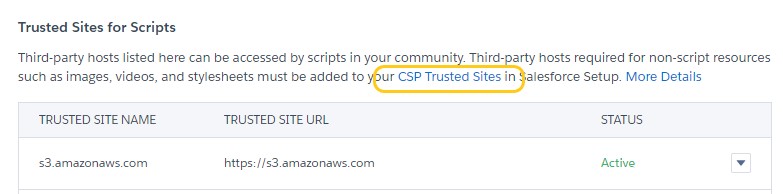
Click New Trusted Site to add the following sites:
https://*cdn.glance.nethttps://*.glance.net- If you are using 1-Click Connect from Chat or a button,
wss://*.glance.net
NoteIf the New Trusted Site button does not display, click the Setup gear icon in the top right corner and choose Setup. Input "CSP" in the Quick Find Bar and select CSP Trusted Sites.Under CSP Directives, select all of the directives:
- Allow site for connect-src
- Allow site for font-src
- Allow site for frame-src
- Allow site for img-src
- Allow site for media-src
- Allow site for style-src
Click Save.
Select the Advanced tab and click Edit Head Markup.
Add the Glance Cobrowse JavaScript Loader Tag in the Head Markup to allow the cobrowse session to happen on the site. This is an example of the script tag and includes the cobrowse script tag and listener script; replace your group ID where specified:
HTML<script id="glance-cobrowse" type="text/javascript" src="https://cdn.glance.net/cobrowse/CobrowseJS.ashx?group=YOUR_GROUP_ID_HERE&site=production" data-groupid="YOUR_GROUP_ID_HERE" data-site="production" data-presence="on" charset="UTF-8" ></script> <script> window.onload = function() { document.addEventListener("DOMContentLoaded", function(event) { document.getElementById("glancestartbutton").onclick = function () { GLANCE.Cobrowse.Visitor.startSession(); }; }); }; window.addEventListener("message", startGlanceSession, false); function startGlanceSession(event) { if (event.origin !== 'https://' + window.location.hostname) { return; } if(event.data !== "startCobrowse") { return; } GLANCE.Cobrowse.Visitor.startSession(); } </script>Click Save at the bottom of the page, and click Publish. You will receive an email message after the site has finished publishing.
Check and confirm that the cobrowse functionality is performing as expected on the site pages by clicking the Cobrowse button.
Set Up 1-Click Connect with Chat in Digital Experiences
You may want to enable 1-Click Connect from chat in your digital experience, to allow agents to join sessions from a digital experience via chat.
Prerequisites
- You have a Glance Account.
- You have set up a Salesforce Digital Experience, and the Digital Experience is enabled in your org.
- You have enabled chat in your Digital Experience site.
Instructions
Click the gear icon (Settings) from the left-side menu.
Select the Advanced tab and click Edit Head Markup.
Paste this code, replacing
YOUR_GROUP_ID_HEREwith your Glance Group ID.HTML<script id="glance-cobrowse" type="text/javascript" src="https://cdn.glance.net/cobrowse/CobrowseJS.ashx?group=YOUR_GROUP_ID_HERE&site=production" data-groupid="YOUR_GROUP_ID_HERE" data-site="production" data-presence="on" charset="UTF-8" ></script> <script> var visitor; // Chat started. window.addEventListener('onEmbeddedMessagingConversationStarted', (event) => { if (event?.detail?.conversationId) { var visitorid = event.detail?.conversationId.replace(/-/g, ''); console.log('Chat Start - visitorid=' + visitorid); visitor = new GLANCE.Presence.Visitor({ groupid: 'YOUR_GROUP_ID_HERE', visitorid: visitorid }); visitor.presence(); } }); // Chat restarted. window.addEventListener('onEmbeddedMessagingConversationOpened', (event) => { if (event?.detail?.conversationId) { var visitorid = event.detail?.conversationId.replace(/-/g, ''); console.log('Chat Restart - visitorid=' + visitorid); visitor = new GLANCE.Presence.Visitor({ groupid: 'YOUR_GROUP_ID_HERE', visitorid: visitorid }); visitor.presence(); } }); // Chat ended. window.addEventListener('onEmbeddedMessagingConversationClosed', (event) => { if (event?.detail?.conversationId) { var visitorid = event.detail?.conversationId.replace(/-/g, ''); console.log('Chat End - visitorid=' + visitorid); visitor.disconnect(); GLANCE.Cobrowse.Visitor.stopSession(); } }); </script>