
Glance automatically creates Glance session records when users launch a Glance session from Salesforce. The Glance session records are automatically associated with the Salesforce object from which the session was initiated. You can access Glance Session data from the app launcher (9-dot menu) and search for Glance Sessions.
The record is created immediately upon using Glance with some initial data:
- Name
- Key
- Type
- Video Use
- Start Time
- Duration
- Associated Object
- ID
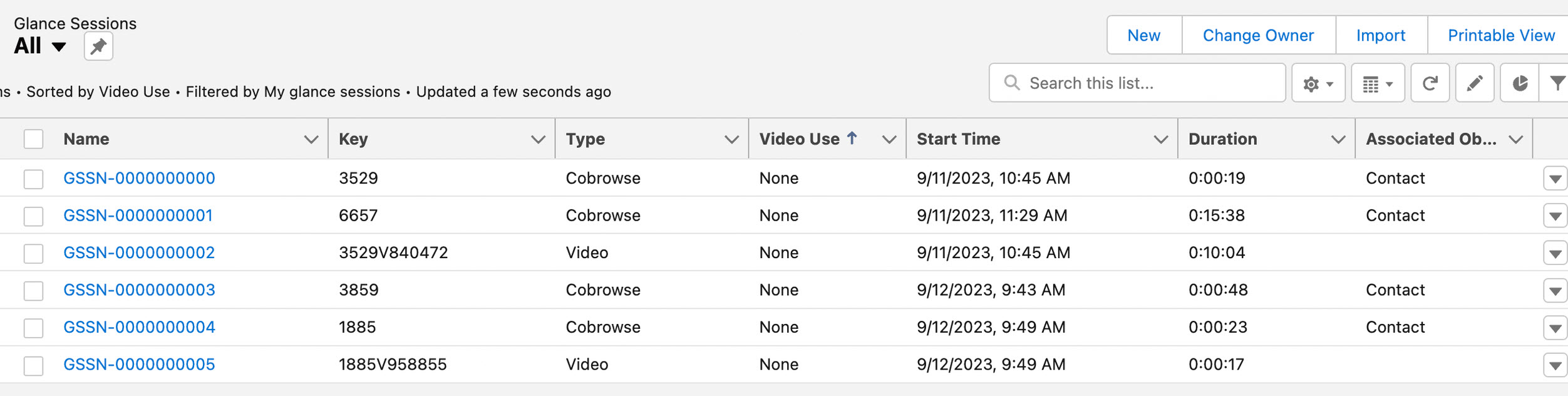
The remaining session details are added after the next scheduled synchronization.
Synchronization requires setting a Default Glance Admin in Glance Company Settings. The user selected must be an Admin in your company's Glance Account and must have the Glance Admin Permission set assigned.
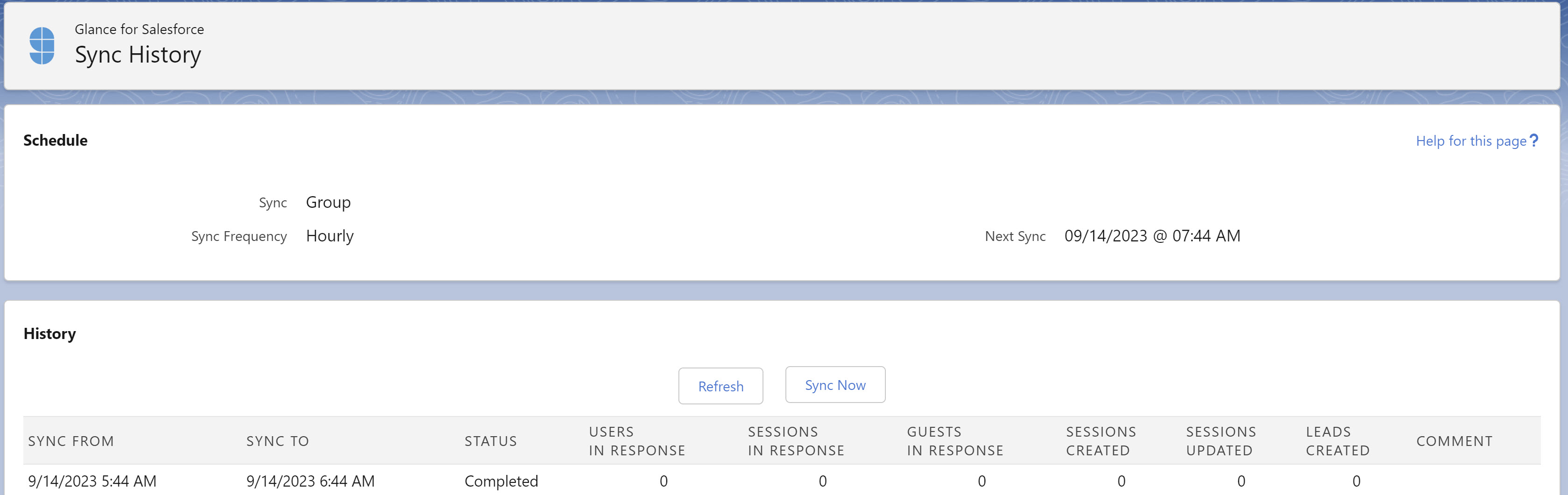
You can see the history of syncs or trigger a sync manually by going to Glance Sync History tab from the App Launcher or the Glance app. You'll see a list of all recent sync jobs and any failures that may have occurred.
Session Type Reference Table
The following table describes the possible session types that can be listed in the Type column.
| Session Type | Description |
|---|---|
| Cobrowse | A Cobrowse session, meaning the customer shares their web browser with the agent via a session key or presence. |
| Show | A 'show' screen share session, meaning the agent shows their screen to the guest. |
| View | A 'view' screen share session, meaning the agent views the guest's screen. |
| Video | A one-way, multi-way, or mobile camera share video session. Use the Video Use column to filter by video type. |
| App | A mobile Cobrowse session, meaning the visitor shares their mobile app screen with the agent. |