
Agent Controls
The agent controls support a range of capabilities, from basic session participation to advanced collaboration features like remote assist and document sharing.
Allows the agent to resize the video window.

Allows the agent to turn their video on and off.

Allows the agent to eject the guest, if needed.

Allows the agent to pause the visitor's video.

The Cobrowse widget contains the End button and options to resize video or turn video on/off. The widget can be dragged and dropped on the screen during a session and will snap to a corner based on the quadrant it is moved into.

The G icon is only informational.

Provides the ability to choose a webcam, turn on video background effects, or turn on accessibility.

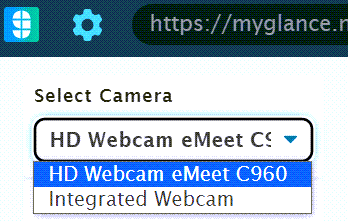
Choose which camera you want to use for the session.
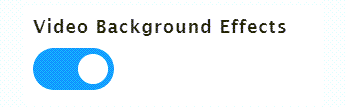
Turn background effects on or off.
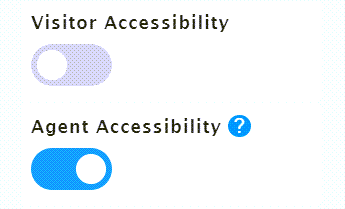
If enabled, turn this switch on (blue) to enable accessibility. This feature allows agents to guide customers by clicking on a page element, which automatically activates the visitor's screen reader to read the clicked element out loud.
If remote assist is enabled, these buttons allow you to go back or forward.

If remote assist is enabled, this button allows you to refresh the page.

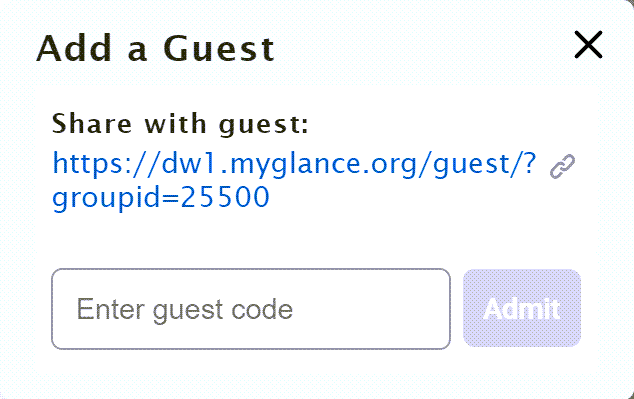
Allows the agent to invite guests to the session.

Once the agent clicks Add Guest, they can click the copy button to copy the URL to the guest join page to share with guests. Once the agent has a code from a guest, they enter the code into the field and click Admit.
If the agent has share screen privileges, it provides the ability for the agent to share a window, browser tab, or their entire screen. It also allows the agent to send a request to the visitor to view their screen.

If the agent has remote assist privileges, it provides the ability for the agent to request control of the visitor's interface. When remote assist is on, a green dot in the middle of the mouse icon is displayed. To stop remote assist, click the mouse button again.

If the agent has share document privileges, it provides the ability for the agent to share a document with the visitor or for the visitor to share a document with the agent.

If the agent has video privileges, it provides the ability for the agent to show video. Click the video button to start agent video. When video is on, a green dot in the middle of the camera icon is displayed. To stop agent video, click the video button again.

Provides relevant session details and diagnostics, including Session Code, Visitor OS, Browser Type, Browser Version, and Report a Problem (if enabled).

The End button ends the session and closes the browser window.

Visitor Controls
This section covers the visitor-side UI experience during video-enabled sessions, including how visitors preview their camera, accept terms, and manage permissions before connecting with an agent.
If a visitor is logged in, and an agent has 1-click connect enabled in a CRM, when the agent clicks the orange Join button, the visitor is presented with a set of terms and conditions.
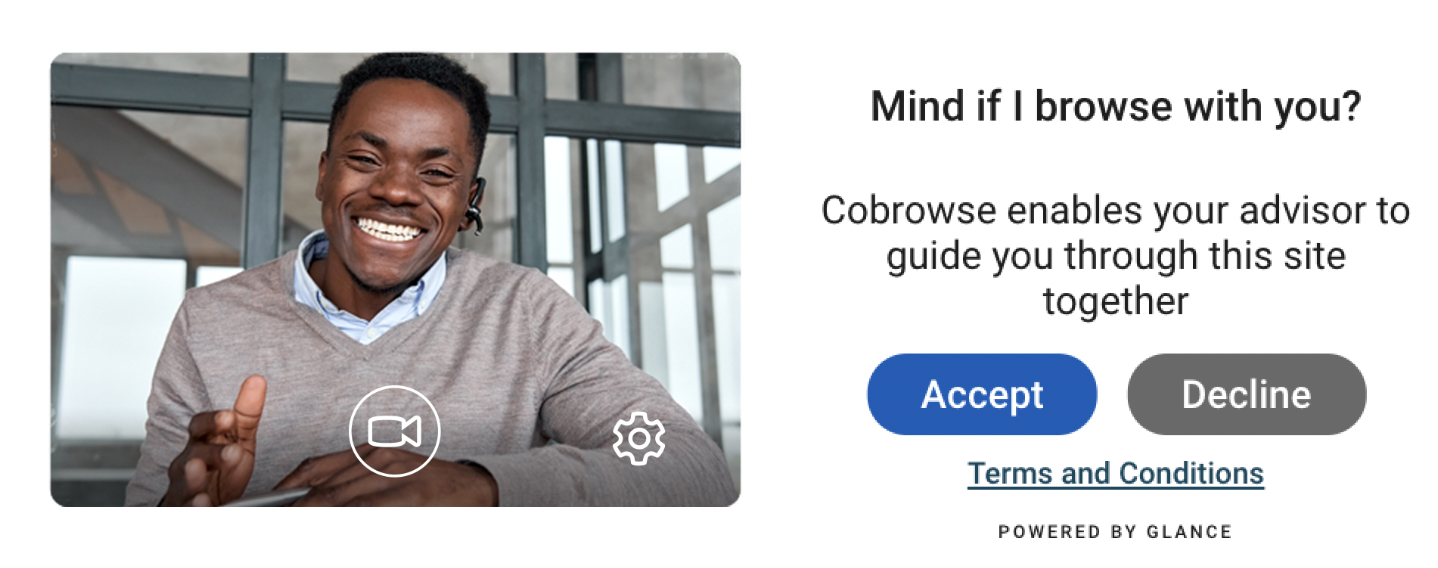
If the camera isn't enabled, this is the first screen.
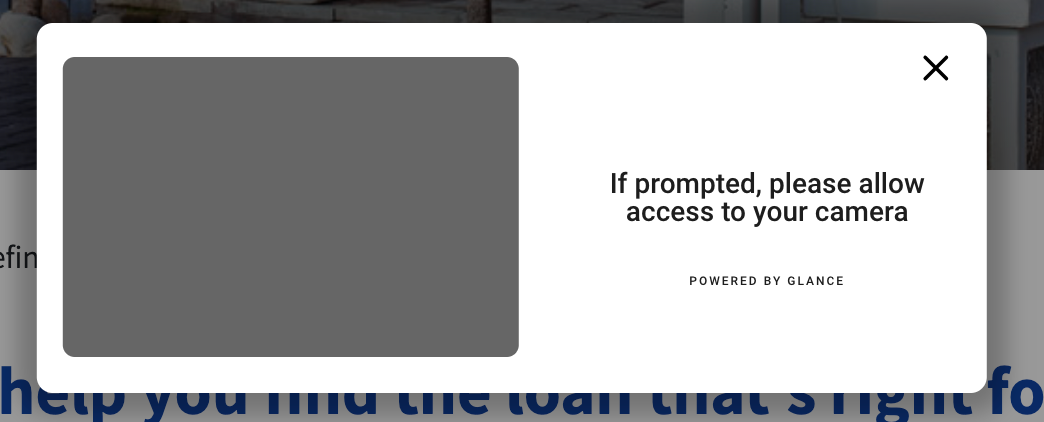
Video preview with session code once the camera is enabled.
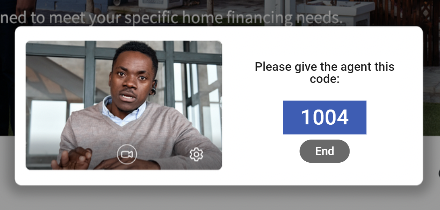
Visitor has clicked the block camera on the browser bar icon or turned off the camera in the modal.
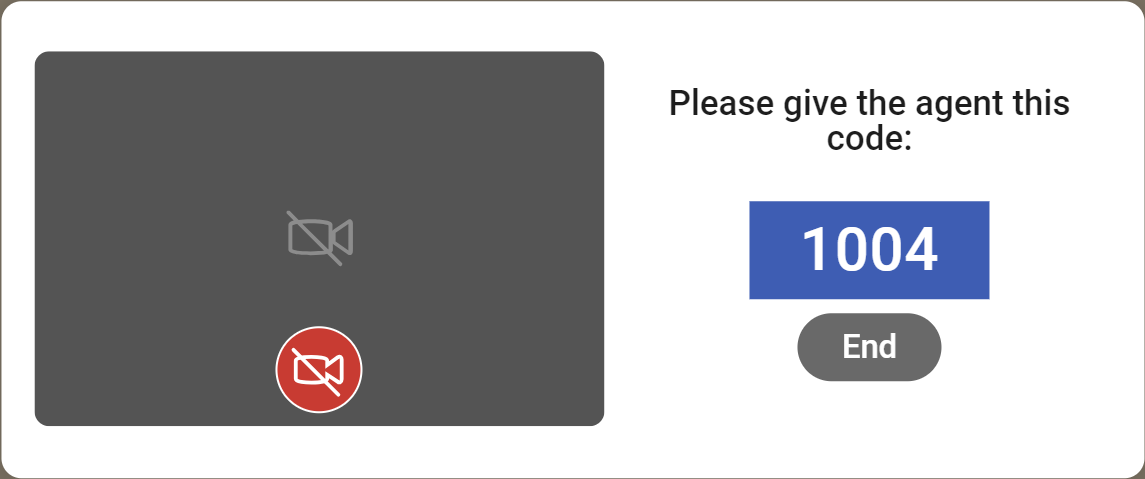
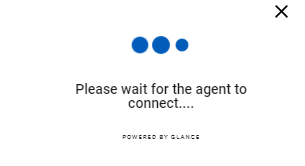
Displays when the visitor has accepted terms, but is waiting for the agent to click Join.
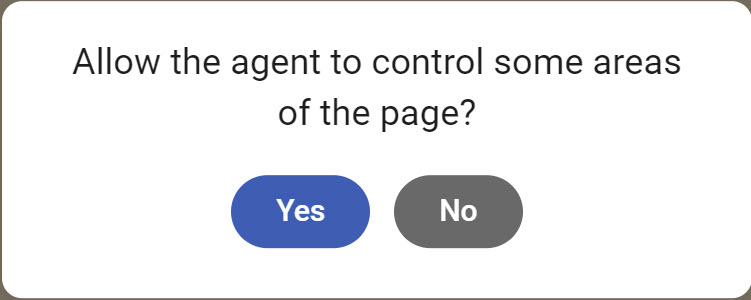
Allows the visitor to accept the remote assist request.
Allows the user to choose a camera.
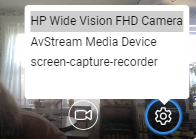
Allows the user to turn their camera on or off.

Guest Controls
This section outlines the guest UI experience when joining a Glance session via invitation.
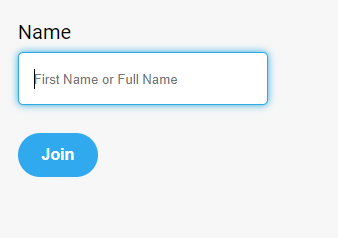
Allows the guest to enter their name. Once they click Join, a code appears.
Allows the guest to choose a camera.
Allows the guest to turn their camera on or off.
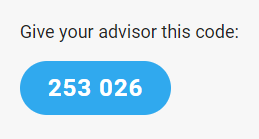
Once the guest has entered their name, a code box appears, which they will provide to the agent to admit them.
In small video mode, if you cannot see all participants in the session, this icon allows you to filter through different participants.