
Agents can invite additional participants to join an active Cobrowse session by following these steps:
- Click the Add Guest button located in the top-right corner of the Agent Viewer.

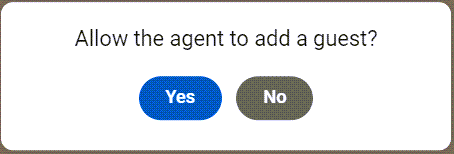
- The visitor will see a prompt asking them to Allow the agent to add a guest?. They must click Yes to proceed.
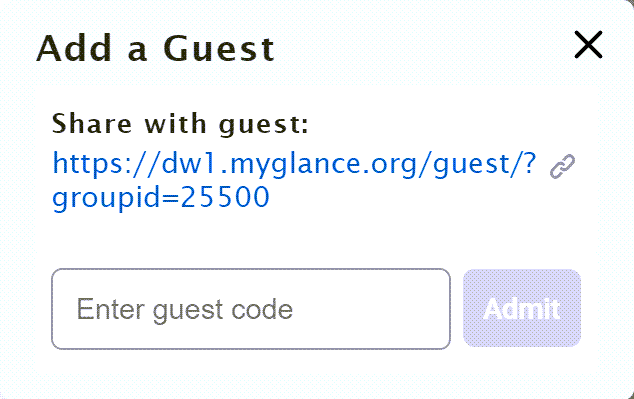
- Copy the URL underneath Share with guest: and send it to the guest.
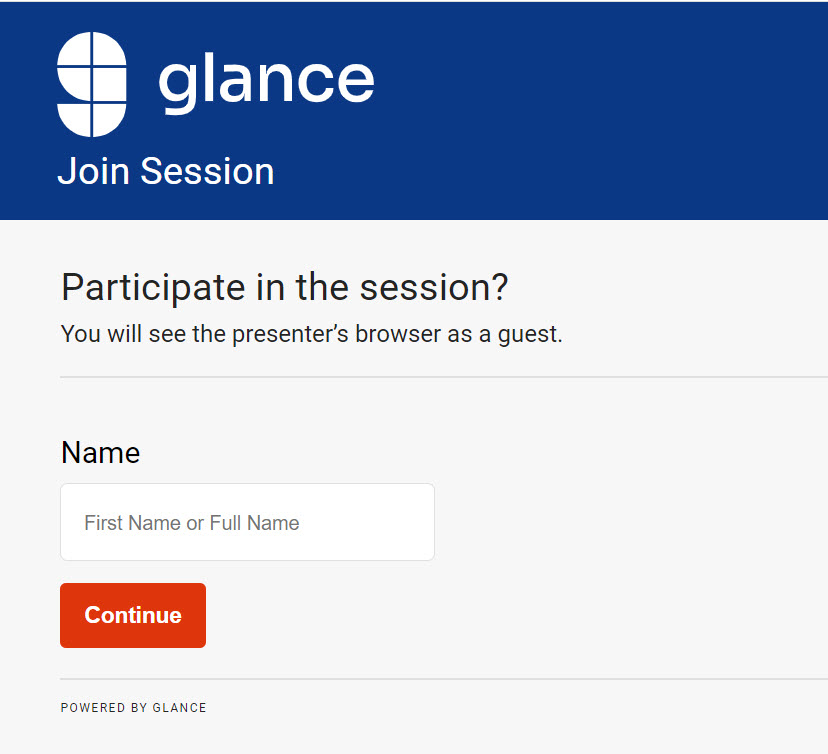
- The guest will be prompted to enter their name and then click Continue.
- Once the guest enters their name, a code is displayed.
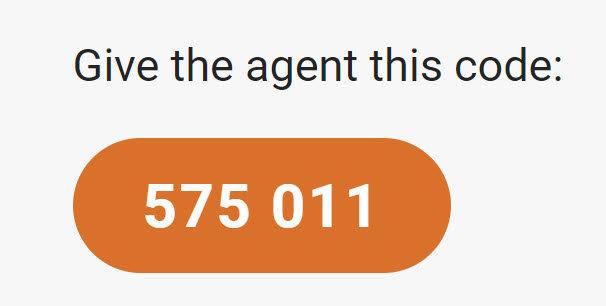
- The agent enters the code from the guest in the Enter the code given to them: field and clicks Admit.
- The guest will be given the option to join the session with their video enabled or disabled by clicking Continue or No thanks. The guest can choose which camera they want to use from the gear icon.
- Agents can disable guest or visitor video at any time by clicking the Video Off icon.

- To remove a guest from the session, click the Eject button.

Hosting Guest Join Page on Your Own Domain
Glance allows you to host the Guest Join Page on your own domain for a more branded experience.
- Contact your Glance representative to request the necessary configuration changes.
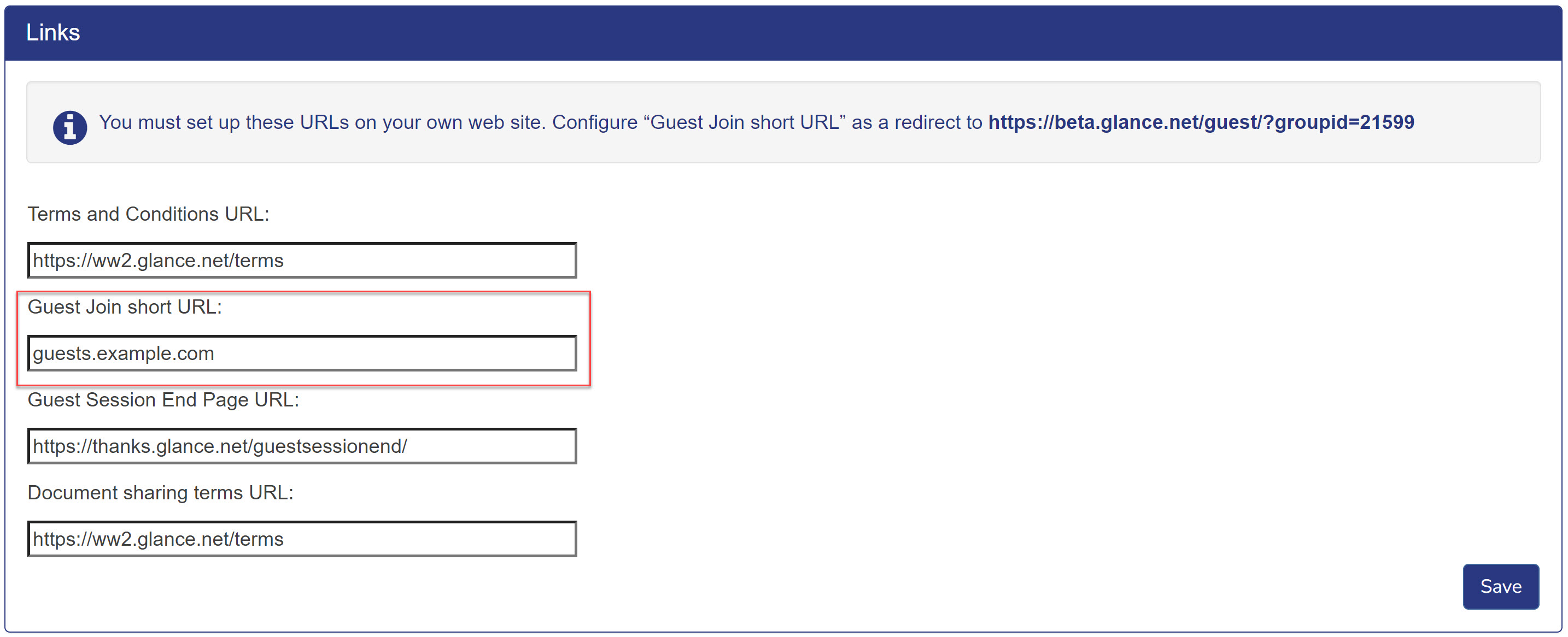
- Once the changes are confirmed, navigate to Account Management > Settings > Manage your cobrowse settings and scroll down to the Links section.
- Update the Guest Join short URL with the URL of your hosted page.
- Add
allow="camera*"to the iframe element. See the below example.
HTML
<iframe
  src="https://www.glance.net/guest/?groupid=12345"
  allow="camera *"
></iframe>