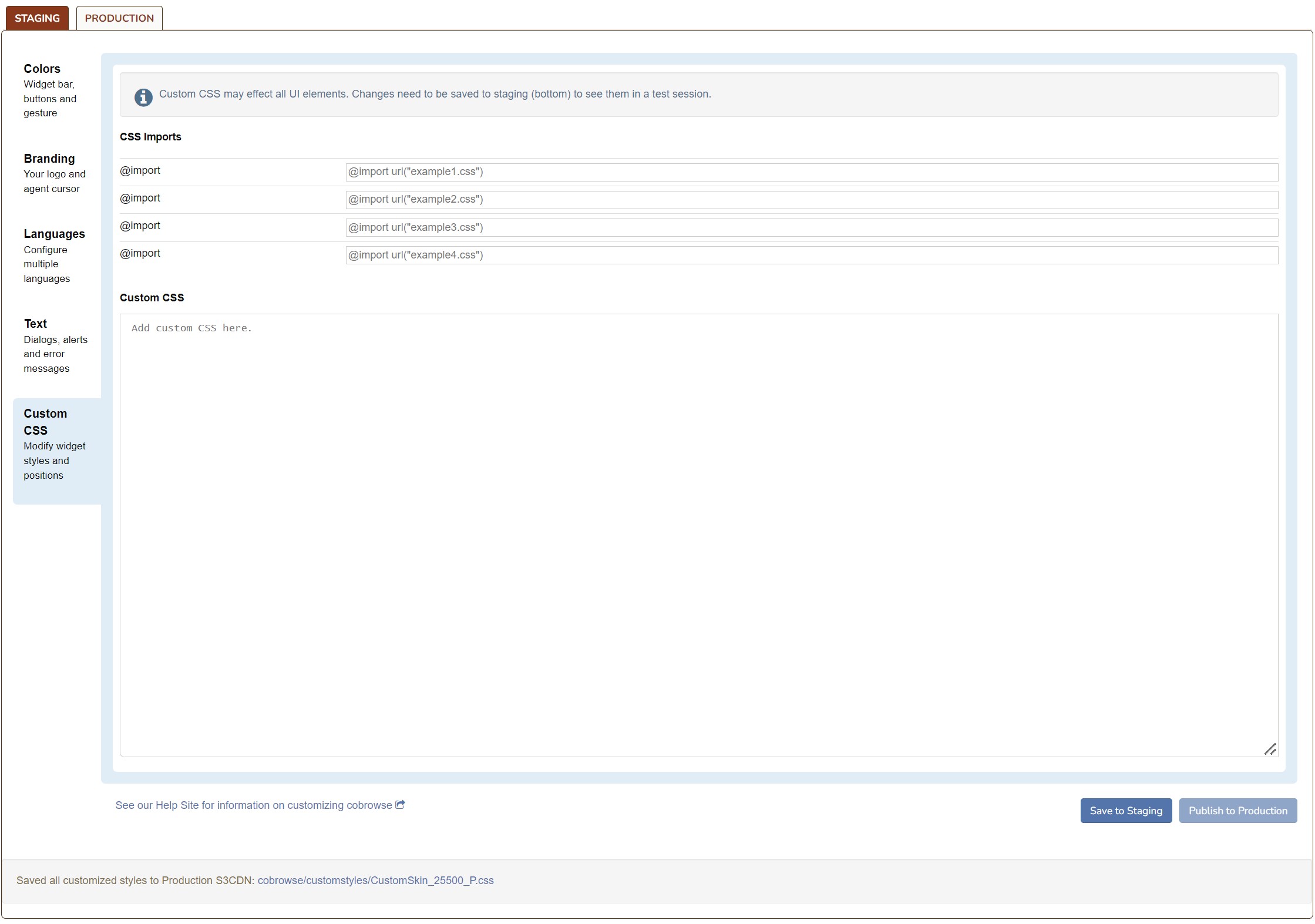
The Cobrowse Widget Customization UI contains two tabs at the top: one for Staging and one for Production. As you make changes to the respective sections, the preview will dynamically change to reflect your changes. After you finish making customization changes, first click Save to Staging to preview to Staging. Once you are satisfied with the changes, click Publish to Production.
This feature is supported for Cobrowse version 5.7 and later.
Access
- Administrators navigate to Account Management.
- Click the Settings tab.
- Scroll down to the Session Settings section and select Manage your Cobrowse settings.
- Scroll down to the Cobrowse Customizations section and click Manage cobrowse customizations.
Color
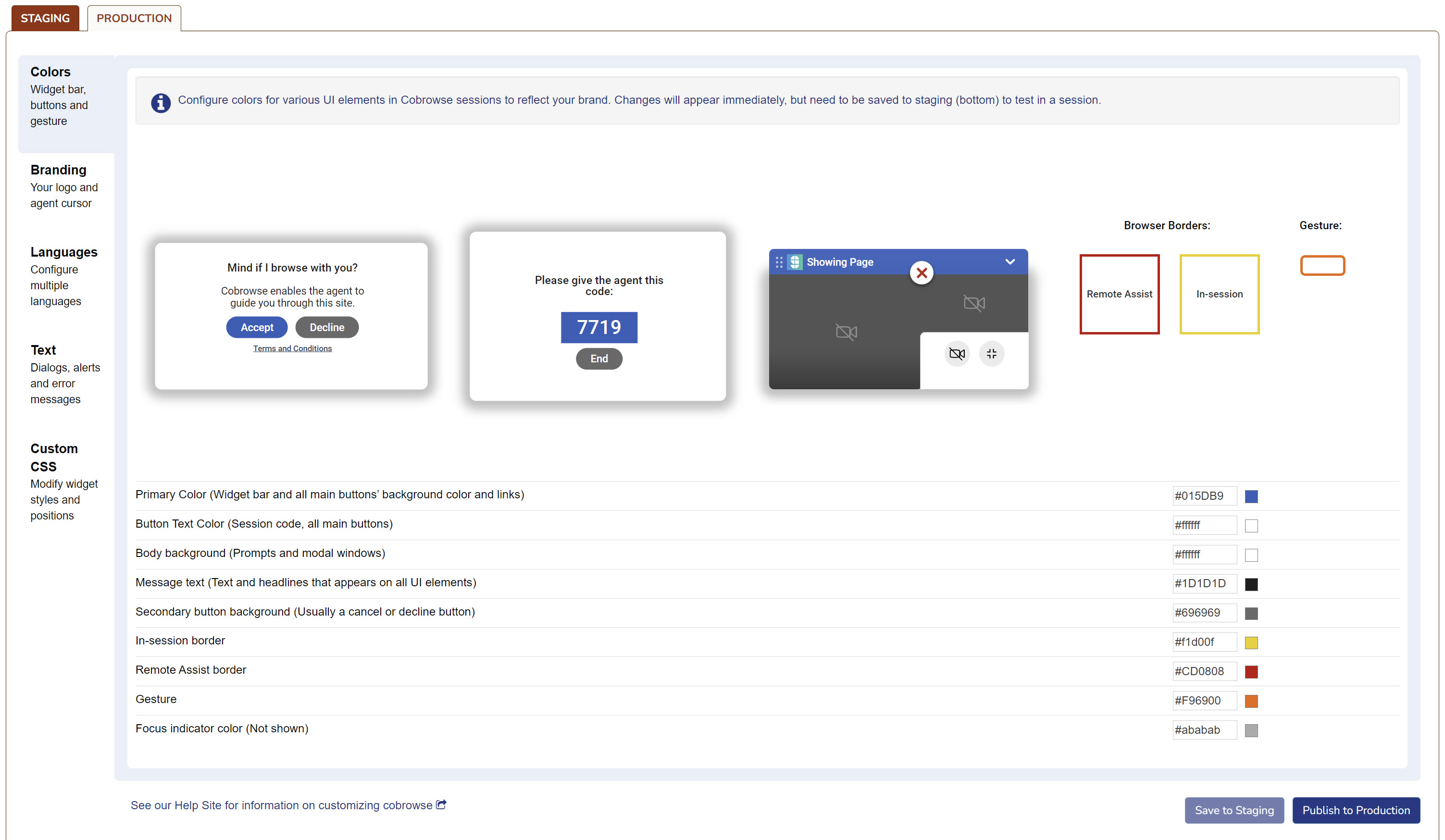
Choose the colors for the widget bar, buttons, and gesturing. You can customize the color of the following UI elements by entering the hex value into the field next to the element.
- Primary Color (Widget bar and all main buttons' background color and links)
- Button Text Color (Session code, all main buttons)
- Body background (Prompts and modal windows)
- Message text (Text and headlines that appear on all UI elements)
- Secondary button background (Usually a cancel or decline button)
- In-session border
- Remote Assist border
- Gesture
- Focus indicator color
Demo
Below is a video demonstration of updating the colors of UI elements.
Branding
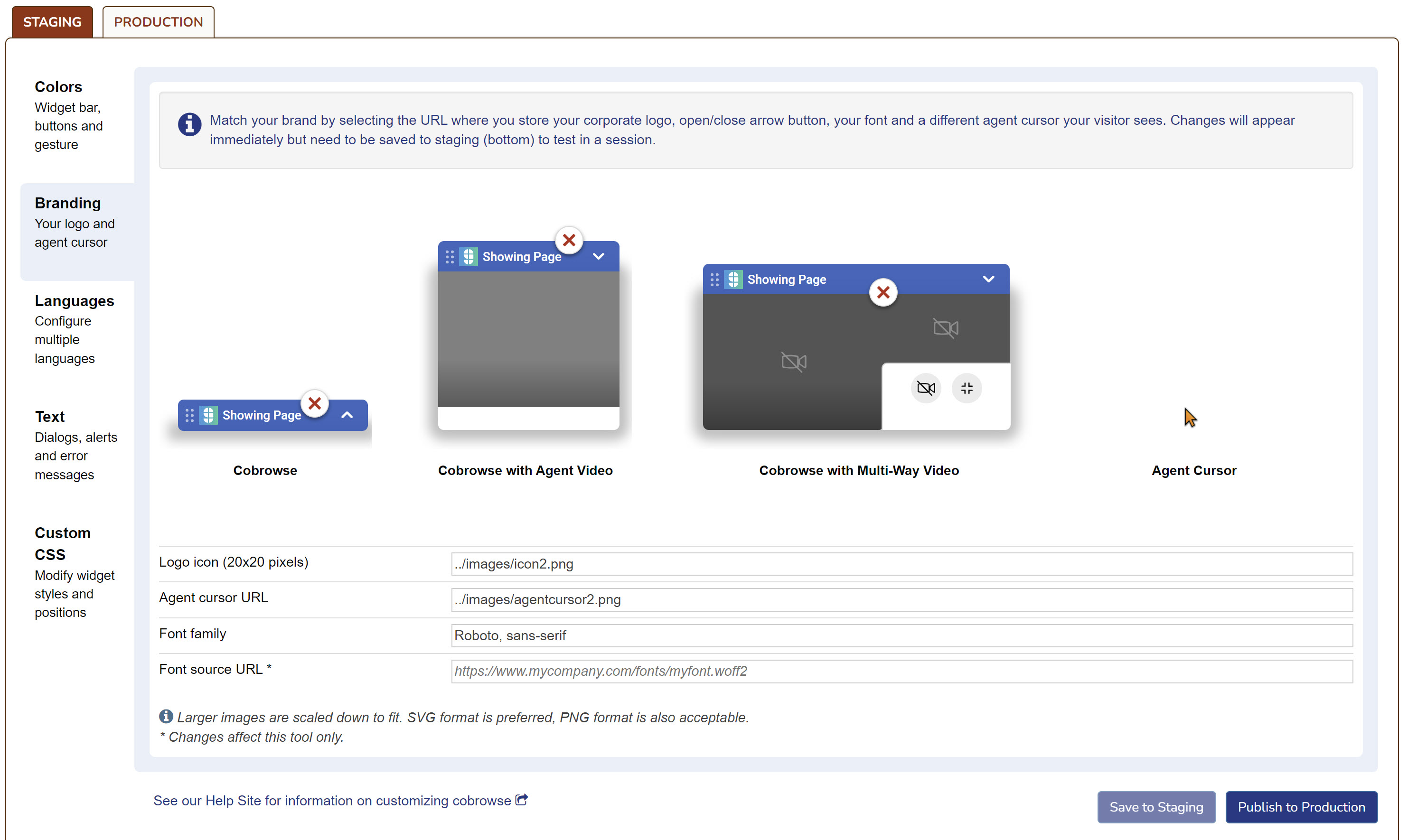
The Branding section allows the user to customize the logo and font displayed on the modals. The user is also able to customize the cursor display for the agent.
- Logo icon: Enter a URL where the logo icon is stored; the image must be in SVG or PNG format.
- Agent Cursor: Enter a URL where the cursor icon is stored; the image must be in SVG or PNG format.
- Font:
- Glance supports any standard HTML and CSS fonts along with any non-standard fonts, as long as the customer website includes the font source.
- To have your custom font appear in the customization tool, enter your publicly available Font Source URL and the matching Font Family.
Languages
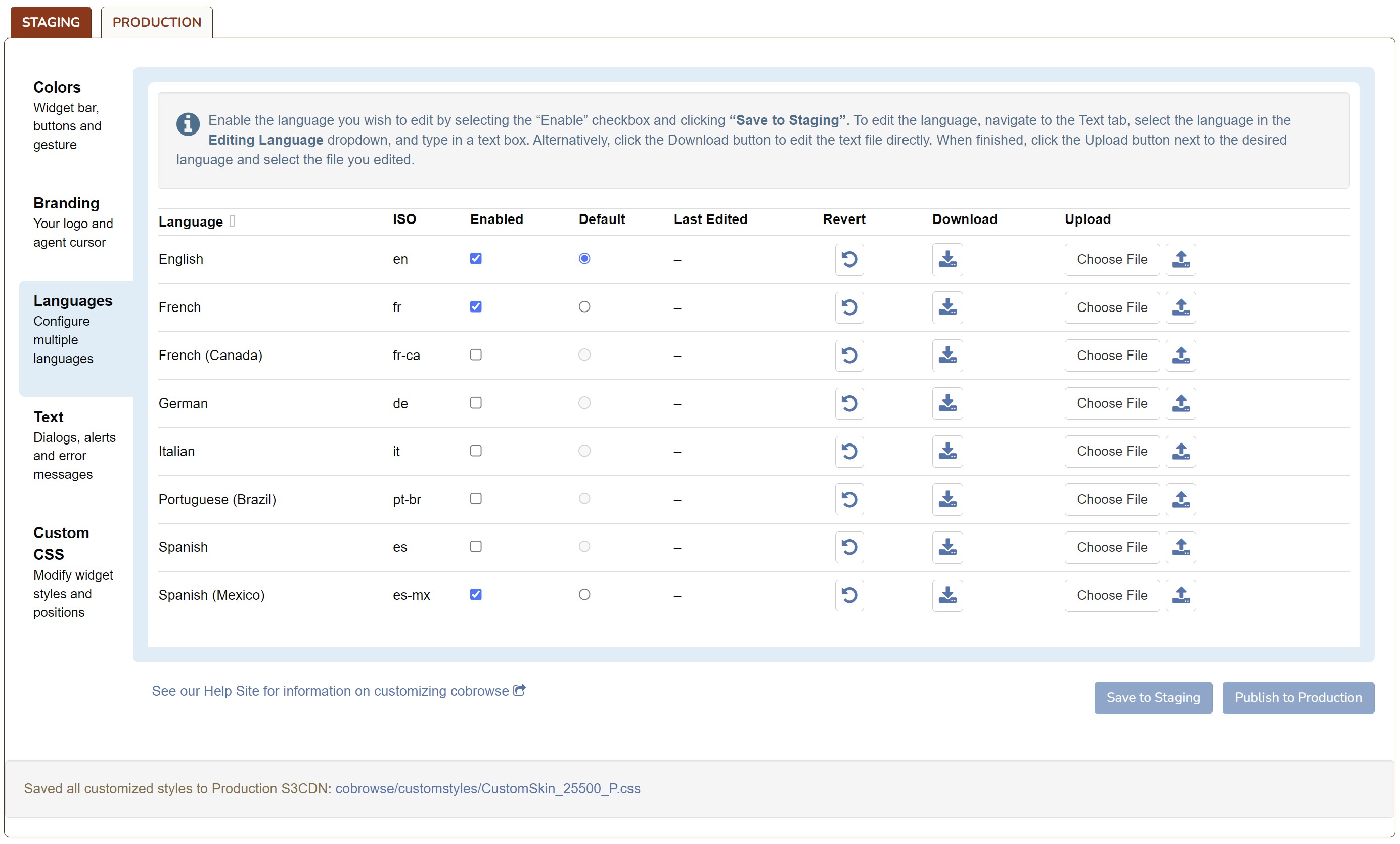
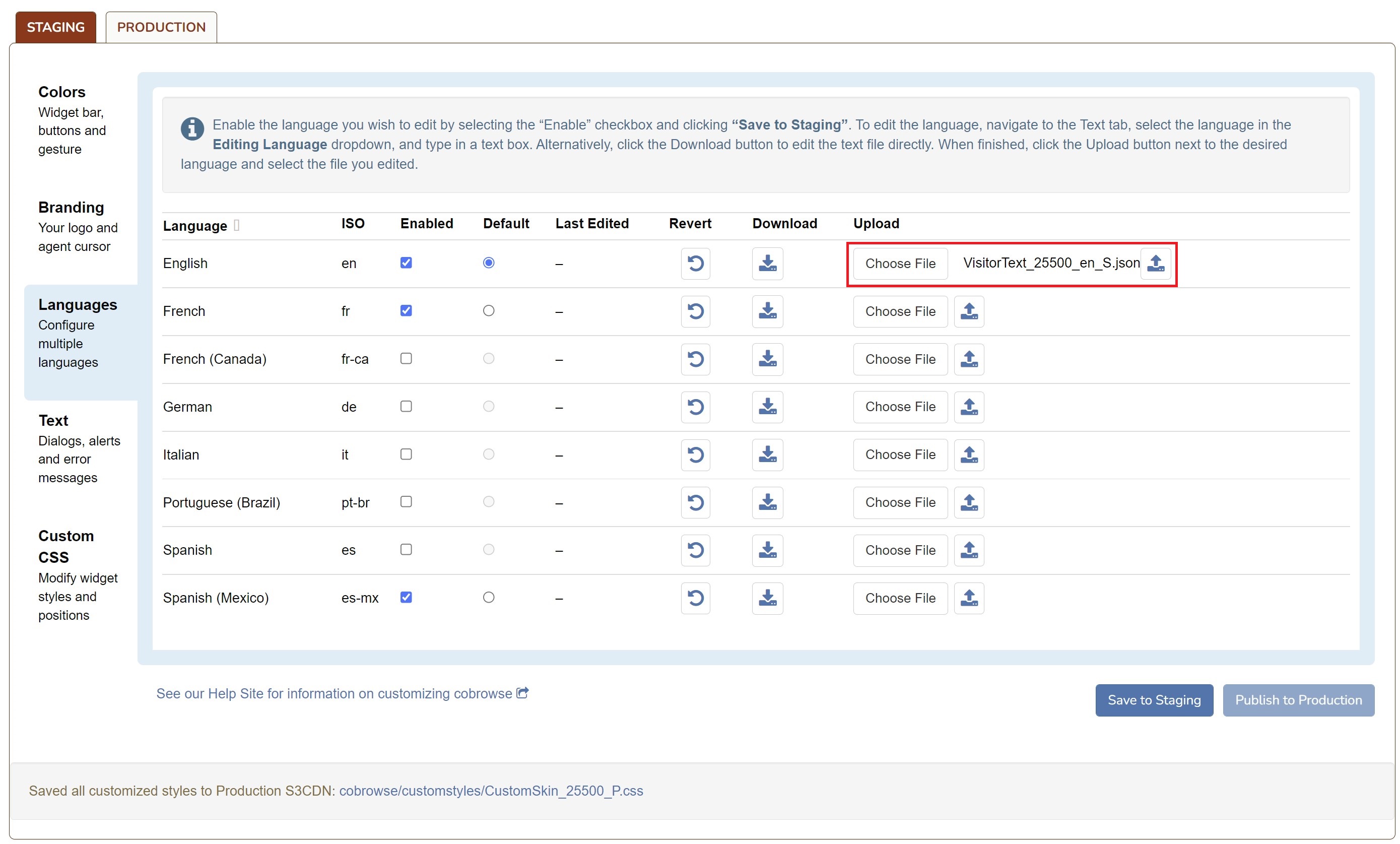
The Language section allows the user to customize which languages are enabled within the widget. The user is also able to make bulk updates to the text used within the modals by updating JSON files. The following languages are supported by Glance:
- English
- French
- French (Canada)
- German
- Italian
- Japanese
- Portuguese (Brazil)
- Spanish
- Spanish (Mexico)
- Spanish (US) - only available for Cobrowse version 6.33 and later
Enabled Language
Select the Enabled option next to each language that you wish to support.
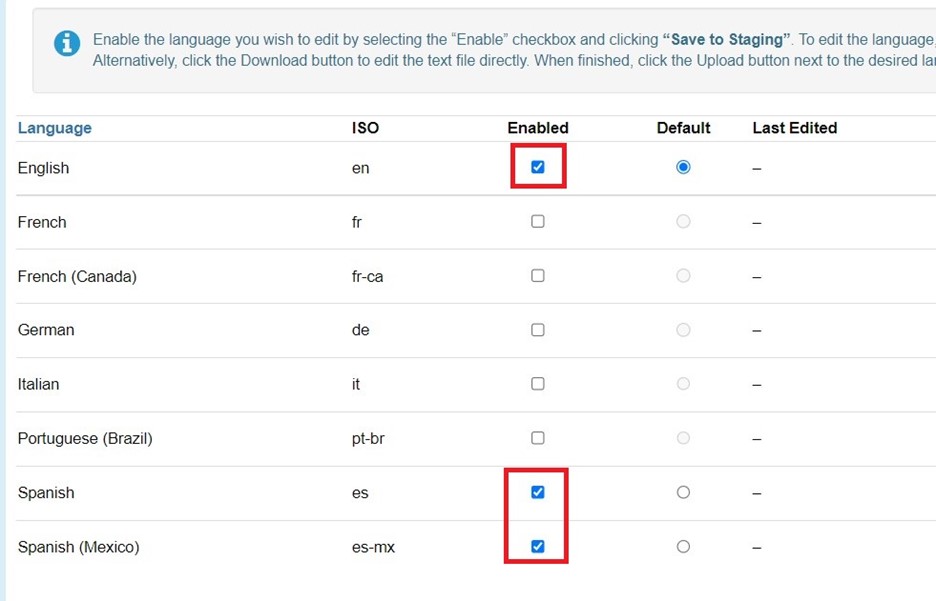
Default Language
Click the Default option next to a language to set it as the default language.
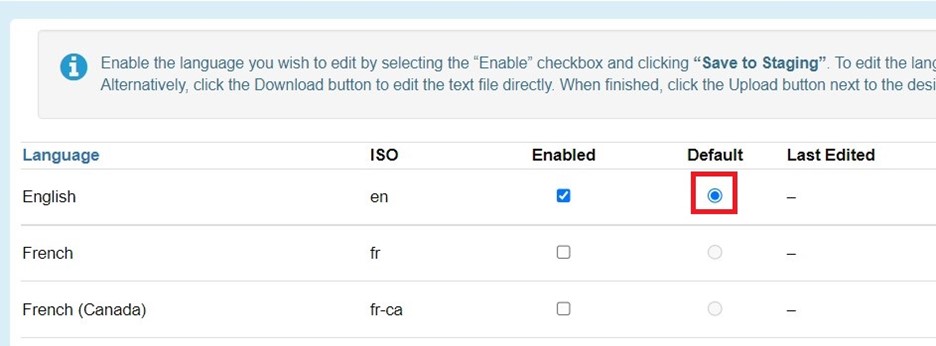
Language Hierarchy
When the Cobrowse session first starts, Glance will check the lang attribute on the <html> tag of the page.
- If the
langattribute is set to one of the enabled languages, that language will be used. - If there is no
langattribute or thelangattribute specifies a language not enabled for Cobrowse, then Glance checks the language setting in the visitor's browser. If the browser is set to a language enabled for Cobrowse, that language will be used. - If neither the language specified by the
langattribute nor the visitor's browser is an exact match of any of the languages enabled for the group, then the Cobrowse widget will display in an enabled language (if there are any) that shares the same main language code based on the HTML language attribute then the browser language setting. For example, if the visitor's browser is set for Spanish (es) but the group has only enabled Mexican Spanish (es-mx), then the widget will display using the strings set for Mexican Spanish, and vice versa. - If none of the above are applicable, the customer's default language will be used.
Download A Language File
A language file can be downloaded to make bulk updates to the text within the modals. Complete the following steps to download, edit, and reupload a language file.
- Click the Download button next to the desired language.
- The file will download through your browser.
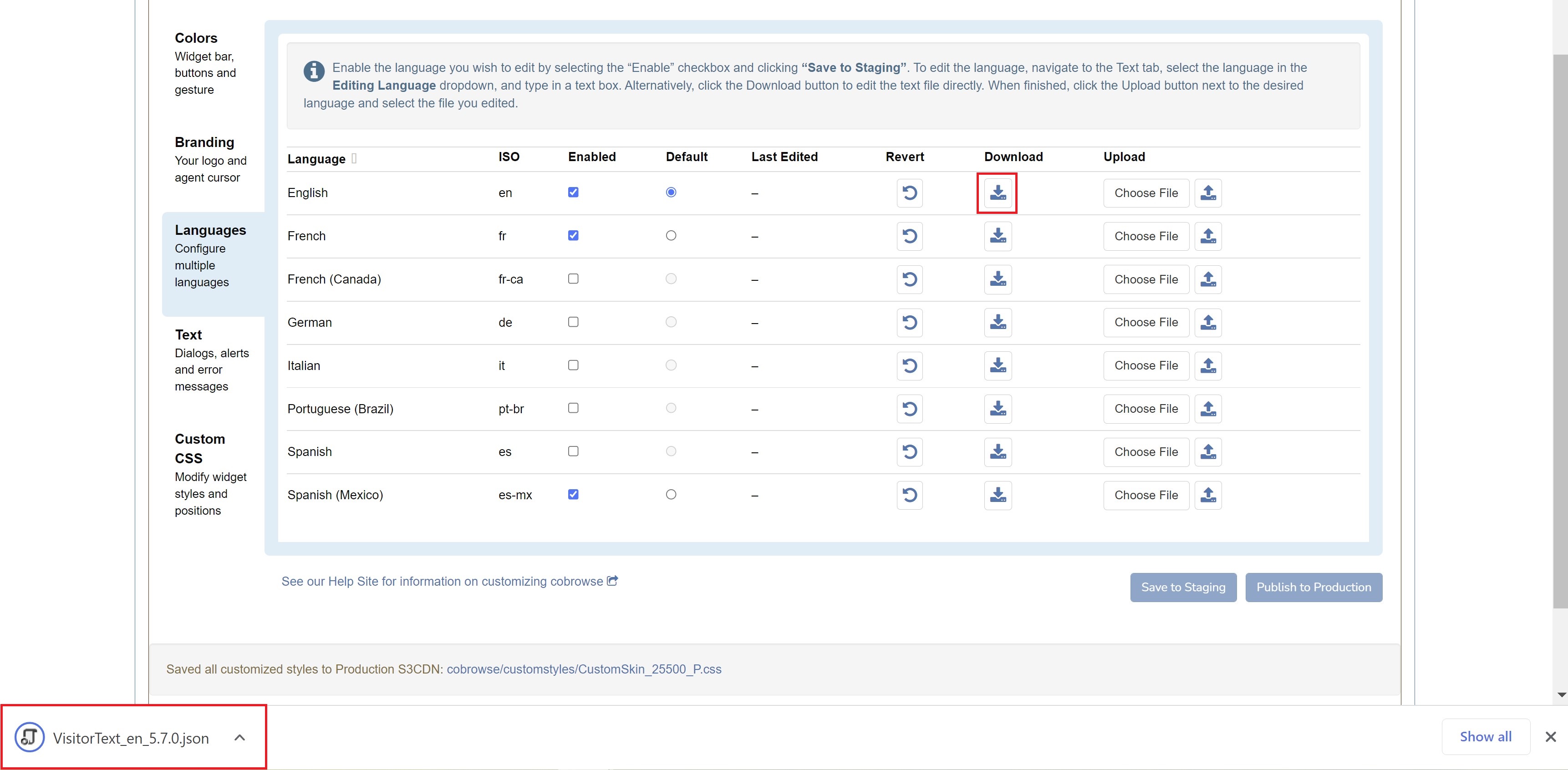
- Save the file to your local drive and open it using a text editor.
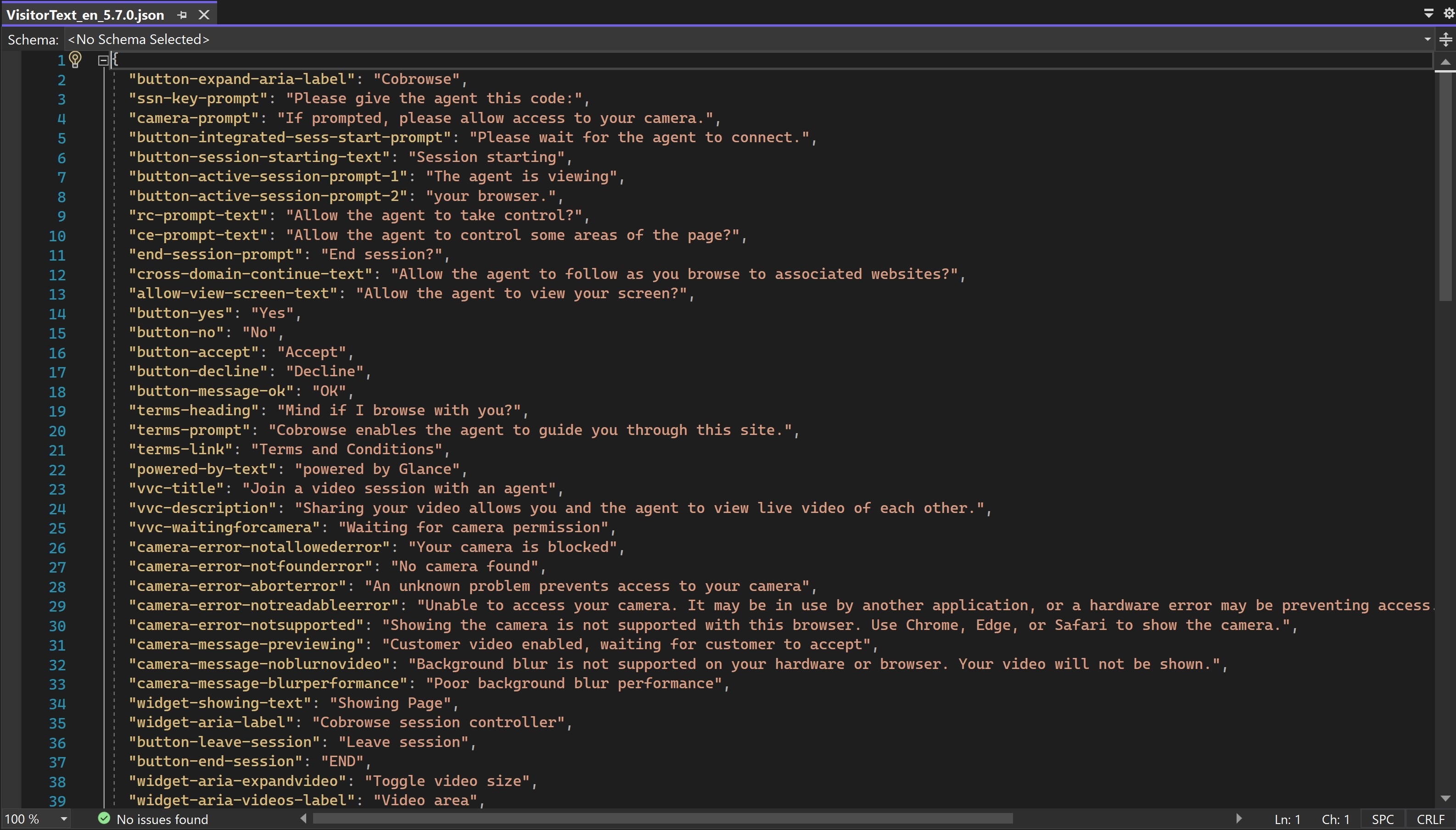
- Make the desired changes to the JSON file.
- Save the file as VisitorText_[groupid]_language_S.json (e.g., English Language =
VisitorText_12345_en_S.json) when your changes are complete.NoteThe group ID must be changed to your ID when saving the file. - Click the Choose File button next to the language and select your modified JSON file.
- Click the Upload button.
Text
The Text section allows the user to modify individual segments of text within the modals. 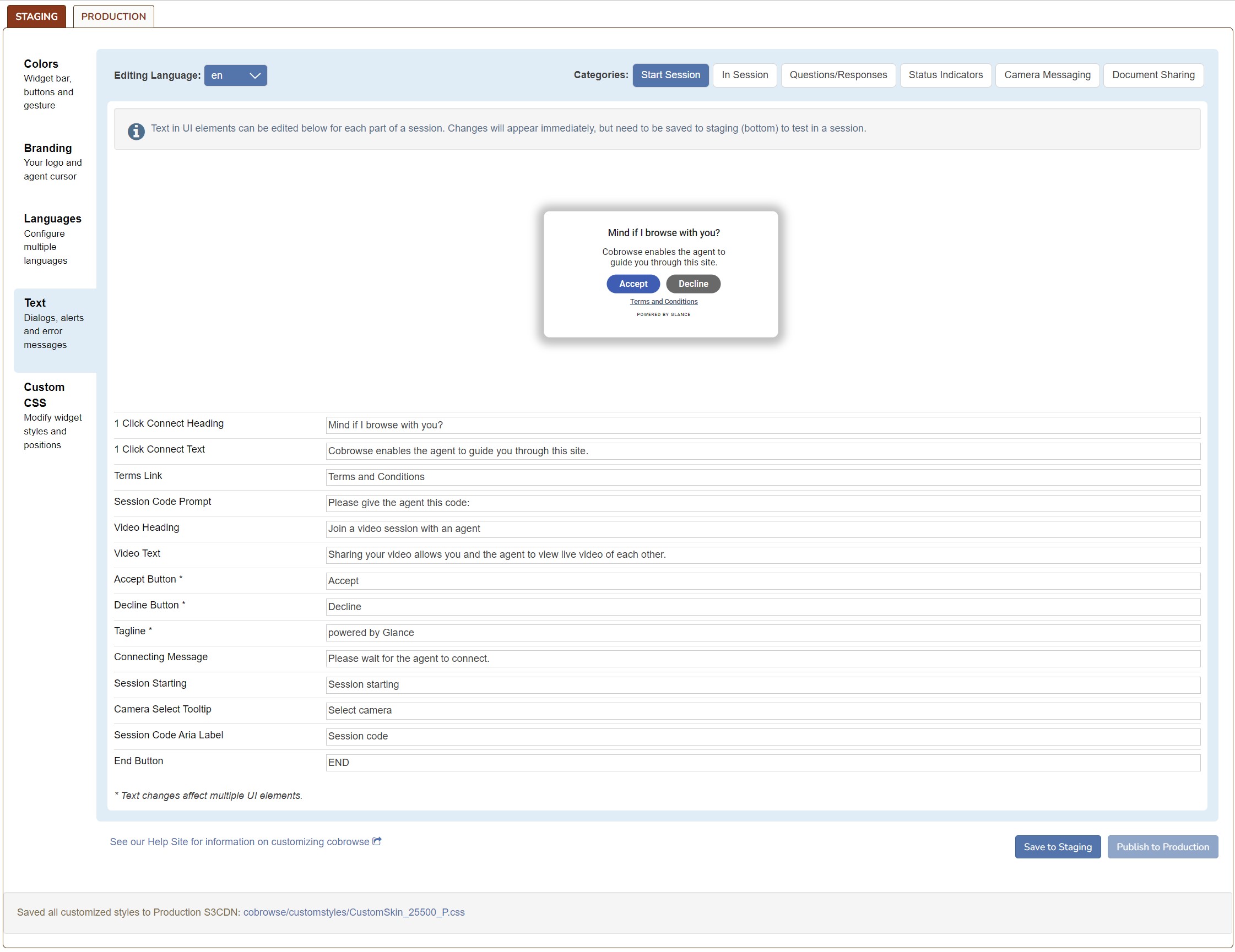
br can be used in the text to indicate a line break. Demo
Below is a video demonstration of text being updated on a modal.
Editing Language
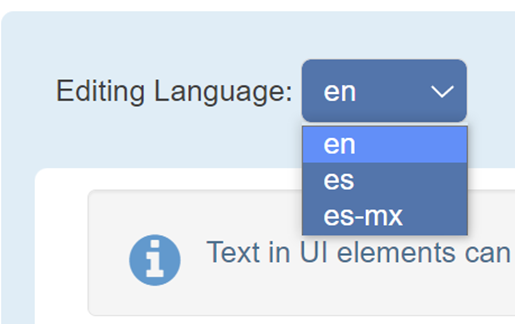
The Editing Language dropdown allows users to select the language to modify. The languages available in the dropdown are based on the languages enabled within the Languages tab.
Categories
The Categories buttons allow users to select which part of the session they would like to modify. The user clicks on a category and the correlating text options are displayed below. Sessions are broken down into the following categories:
- Start Session
- In Session
- Questions/Responses
- Status Indicators
- Camera MessagingInfoThis category is dependent on multi-way video settings for the group.
- Document Sharing
Custom CSS
The Custom CSS section allows users to modify widget styles and positions. CSS files can be imported using the CSS Imports section or CSS can be modified directly using the Custom CSS section.