
Glance Customer Care may occasionally need additional information about the network requests that are generated in your browser. A member of the team may ask you to record a HAR file, or a log of network requests, while that issue occurs. The following instructions describe how to generate a HAR file within different internet browsers.
Generating a HAR File in Chrome
- Open Chrome and navigate to the page where the issue is occurring.
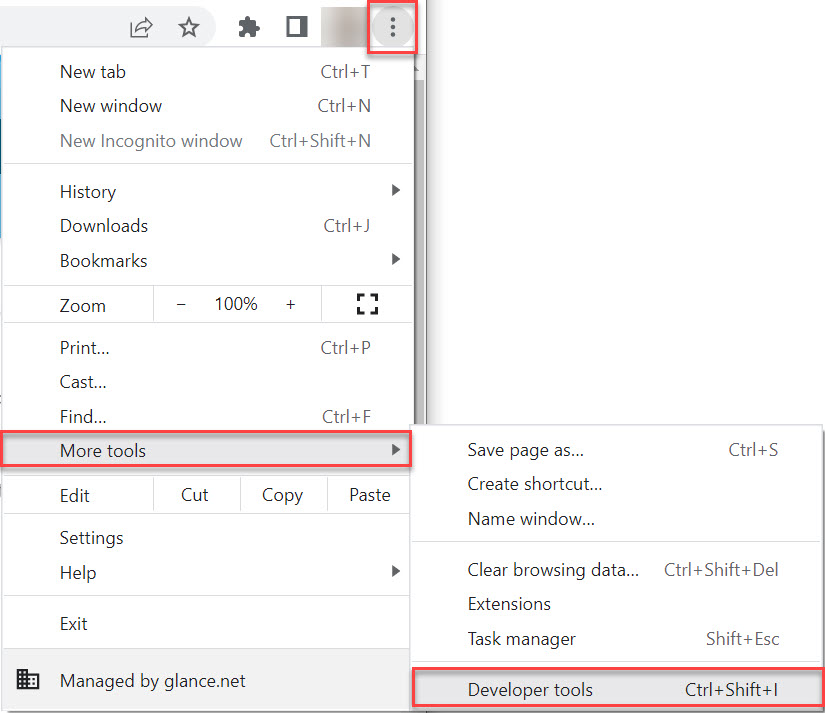
- Click the vertical ellipsis button and select More Tools > Developer Tools.
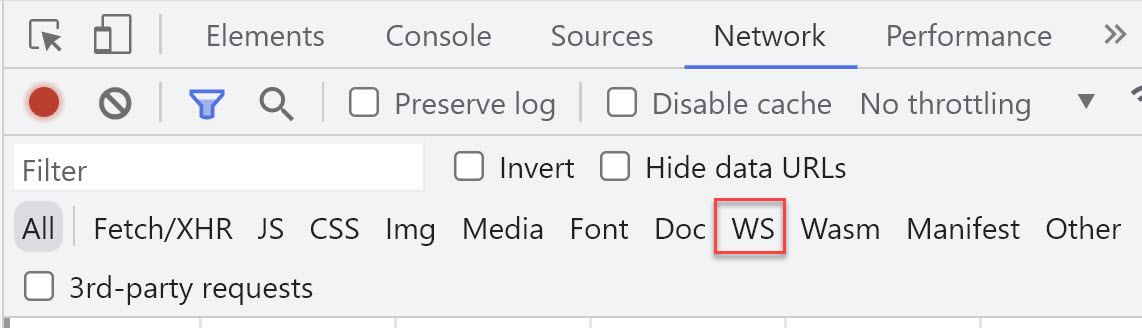
- Select the Network tab.NoteIf Customer Support has requested a HAR file with WebSockets, select the WS option in the Network tab. Reload your browser to start seeing the traffic over the WebSocket.
- Confirm the record button in the upper left corner is red. If it is grey, click the button once to start recording.
- Check the Preserve Log box.
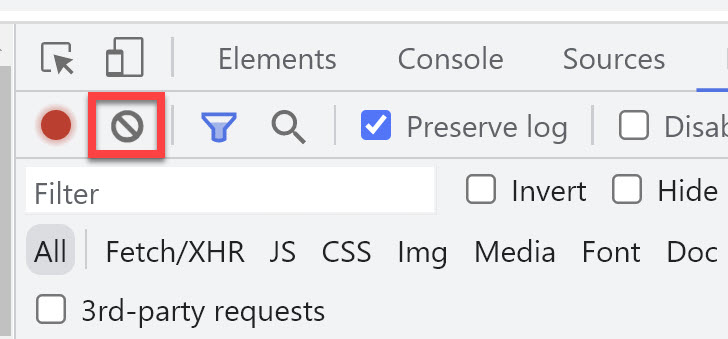
- Click the Clear button to clear any existing logs from the network tab.
- Reproduce the issue while the network requests are recorded.
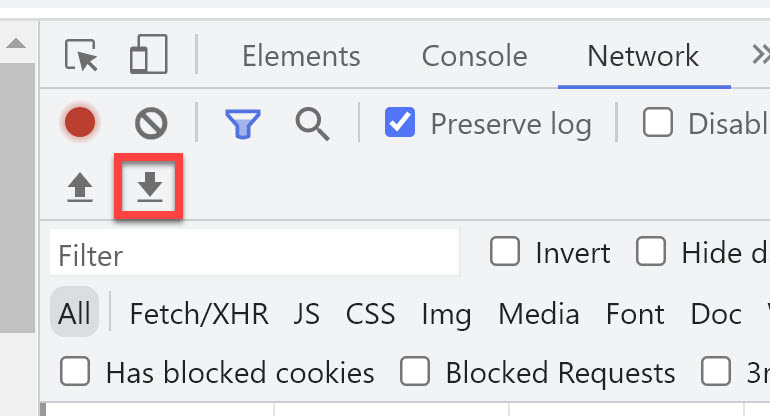
- Click the download button to save the file to your computer. Save the file as "HAR with Content".
- Upload the HAR file to your ticket with Glance Customer Support for further investigation.InfoFor any issues generating the HAR file in Chrome, review Google's Help Center document Capture Web Session Traffic.
Generating a HAR File in Firefox
- Open Firefox and navigate to the page where the issue is occurring.
- Open the Network Monitor.
- Reproduce the issue while the network requests are recorded.
- Right-click anywhere under the File column and click Save All As HAR.
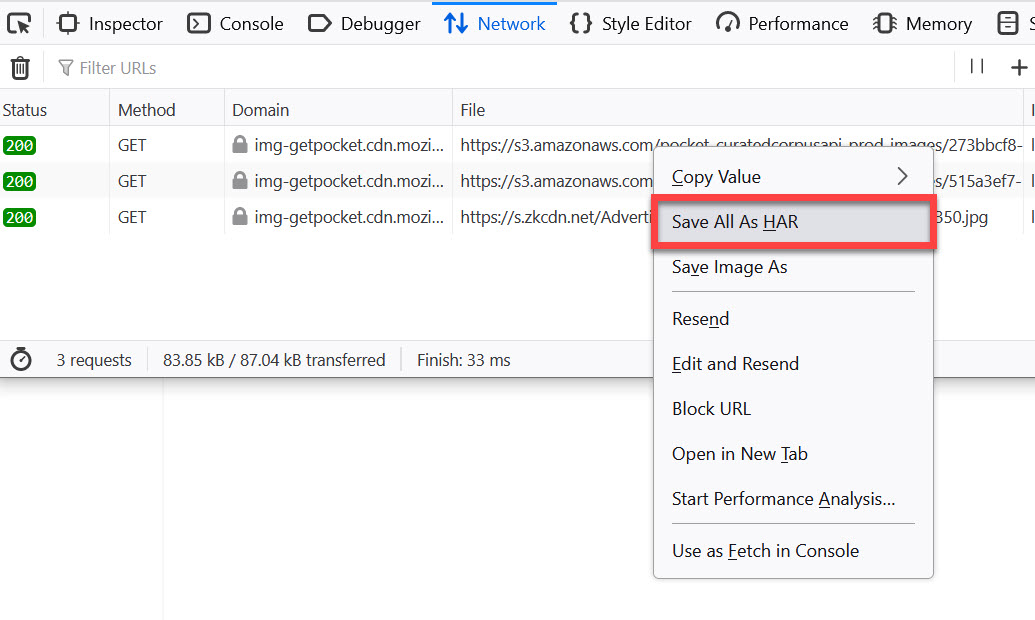
- Save the HAR file to your desktop.
- Upload the HAR file to your ticket with Glance Customer Support for further investigation.InfoFor any issues generating the HAR file in Firefox, review Firefox's source document Network Monitor.
Generating a HAR File in Safari
- Open Safari and navigate to the Develop menu.NoteIf you don't see the Develop menu, refer to Use the developer tools in the Develop menu in Safari on Mac.
- Select Show Web Inspector.
- Click the Network tab.
- Reproduce the issue while the network requests are recorded.
- Click the Export icon and save the HAR file.

- Upload the HAR file to your ticket with Glance Customer Support for further investigation.InfoFor any issues generating the HAR file in Safari, review Safari's Developer Website Web Inspector.
Generating a HAR File in Edge
- Open Edge and go to the Network Tool.
- Click the Network tab.
- Reproduce the issue while the network requests are recorded.
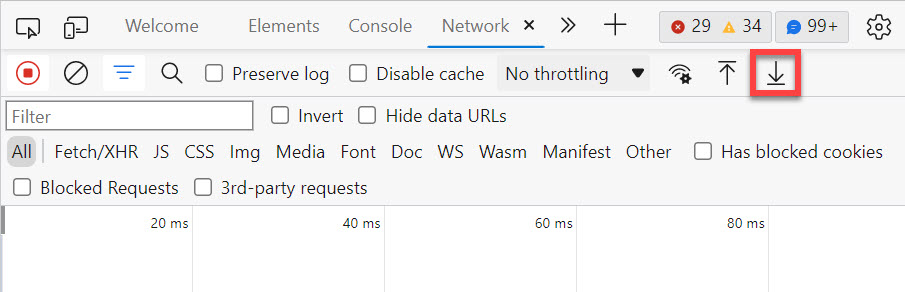
- Export captured traffic as a HAR file.
- Upload the HAR file to your ticket with Glance Customer Support for further investigation.InfoFor any issues generating the HAR file in Edge, review Edge's Website Inspect Network Activity.