
At a high level, configuring Glance Video on your website requires:
- A website tagged with Cobrowse Version 5.0 or later.
- Users with these settings enabled by Glance in the Account Management website:
- Add multi-participant video during cobrowse sessions
- Invite Guests
If you are using Salesforce, you can join Glance Video sessions from the Join button in Salesforce.
- Install the Glance Package, version 3.9 or later. Details here.
- Choose to start the session in Large or Small video mode. Details here.
To learn more about enabling this product for your group, Contact Glance.
Conduct a Glance Cobrowse session with Video
To join a Glance Cobrowse session with Video, Glance recommends that you place a clickable element, such as a link, button, or other object, at the footer of every web page. An agent can then ask the visitor to scroll to the bottom of whatever page they are on and click that element to start a session. See this page for more information on creating a Cobrowse button.
To join a Glance Cobrowse session with Video:
- The visitor clicks the element to start a session.
- The visitor receives a prompt to allow access to the camera. Once allowed, they will see the session code to provide to the agent.
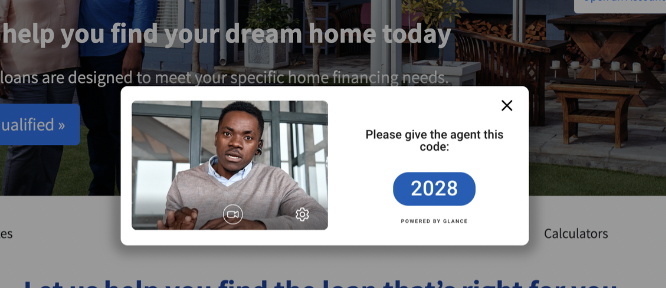
- The agent enters the code in the Agent Join Page or CRM.
- Depending how the group is configured, the agent will join with video on automatically, or they can click the video icon in the agent viewer to turn on their camera. Now the visitor and agent can see each other.
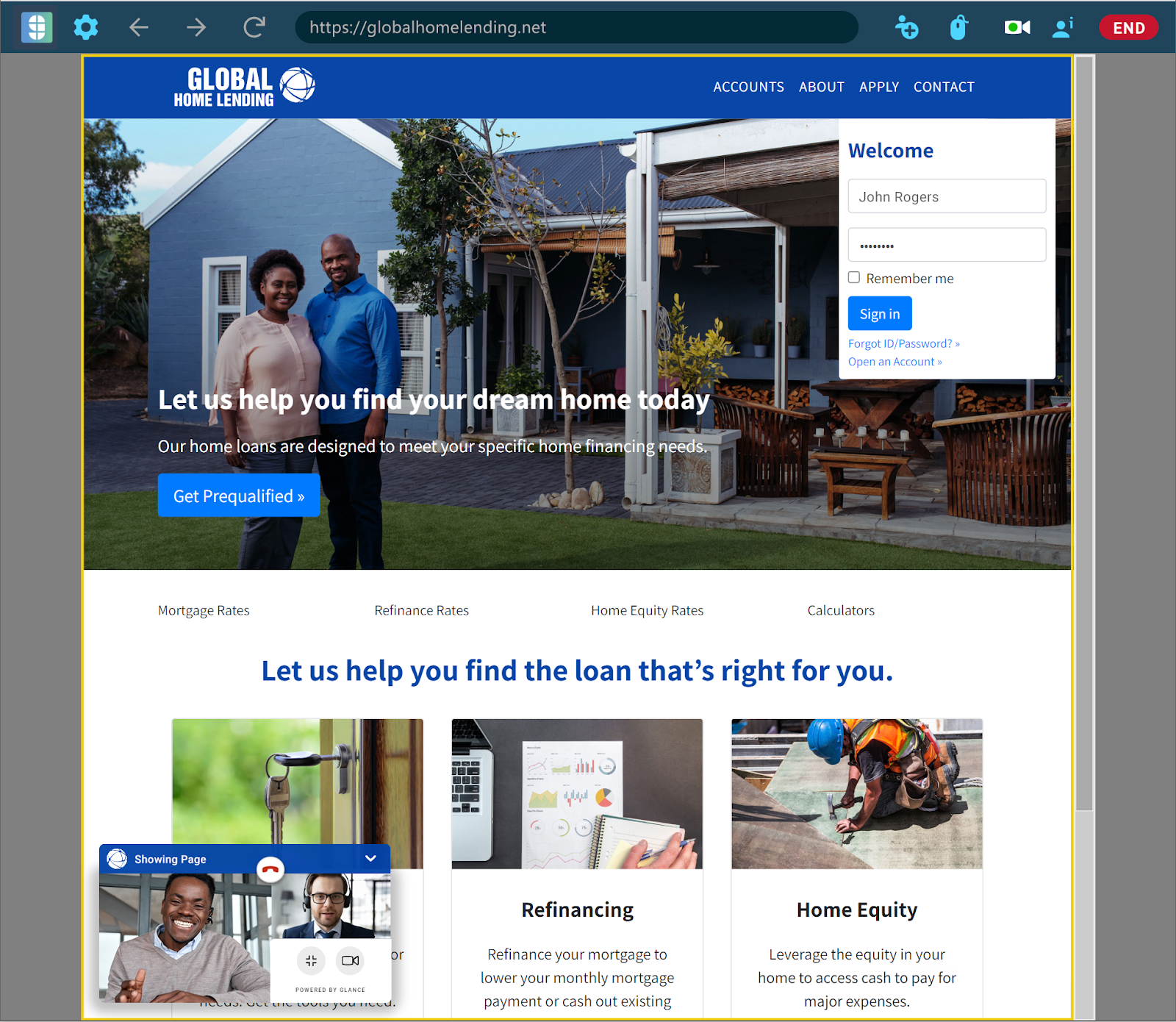
- The visitor and agent can move from small or large video modes by clicking the resize icon.
Capabilities By User
Users have different abilities during the session. The following table lists which capabilities are available to agents, viewers, and guests in the session.
| Agent | Visitor | Guests | |
|---|---|---|---|
| End Session | X | X | |
| Leave session | X (last agent leaving ends session) | X (leaving ends the session) | X |
| Scroll | X | X | |
| Gesture | X | X | |
| Turn on/off personal video | X | X | X |
| Turn off another agent's video | X | ||
| Turn off guest video(s) | X | ||
| Turn off visitor video | X | X | |
| Remove guest from a session | X | ||
| Add guest to session | X | ||
| Enlarge video | X | X | |
| Minimize video | X | X |